
Download Express Zip File Compression Software – Fast, Free, Secure Archive Tool for Windows & Mac
Express Zip is a lightweight, high-performance file compression tool designed for users who need a reliable way to compress and decompress ZIP files quickly and securely. Whether you're sending large files via email, backing up documents, or organizing digital content, Express Zip delivers a seamless experience across Windows and Mac platforms. With minimal system resource usage and an intuitive interface, this software is ideal for both beginners and advanced users. The free version offers core compression features, while the Express Zip Plus upgrade unlocks advanced tools like encryption, batch processing, and cloud integration. Download Express Zip today and simplify your file management workflow with a trusted, fast, and secure archive utility.
Why Express Zip Stands Out in File Compression Software
When it comes to managing digital files, compression tools are essential for saving space and streamlining file sharing. Among the many options available, Express Zip has carved a niche for itself by combining speed, simplicity, and reliability. Unlike bulky software that slows down your system, Express Zip runs efficiently, using minimal CPU and RAM—making it perfect for older machines or users who prioritize performance.
The software supports a wide range of archive formats, including ZIP, RAR, 7Z, and TAR, ensuring compatibility with most file types you encounter daily. One of its standout features is the drag-and-drop functionality, which allows users to compress or extract files with just a few clicks. This ease of use is especially beneficial for non-technical users who don’t want to navigate complex menus.
Security is another major strength. Express Zip offers AES-256 encryption for password-protected archives, ensuring sensitive data remains safe during transmission or storage. Whether you're sharing financial documents, personal photos, or work-related files, you can rest assured that only authorized users can access the contents.
The software also includes a built-in file recovery feature, which helps restore corrupted archives—a rare and valuable tool in the compression space. Additionally, Express Zip automatically updates to the latest version, ensuring you always have the most secure and efficient tool at your disposal. With a clean, modern interface and no intrusive ads, Express Zip delivers a premium experience without the premium price tag.
For those who frequently work with large files—such as photographers, designers, or data analysts—Express Zip’s ability to handle multi-gigabyte archives without lag is a game-changer. The software processes files in the background, so you can continue working without interruption. It also integrates smoothly with your operating system, adding context menu options in Windows Explorer and Finder, so you can compress or extract files directly from your file browser. This level of integration enhances productivity and reduces workflow friction. Overall, Express Zip isn’t just another ZIP tool—it’s a smart, efficient, and secure solution that fits naturally into your daily digital routine.
Key Features and Functionalities You Can’t Miss
- Fast Compression & Decompression – Process large files quickly with optimized algorithms that minimize processing time.
- Support for Multiple Formats – Work with ZIP, RAR, 7Z, TAR, GZIP, and more in a single application.
- AES-256 Encryption – Secure your archives with military-grade encryption for sensitive data.
- Batch Processing – Compress or extract multiple files at once, saving time on repetitive tasks.
- Drag-and-Drop Interface – Easily manage files by dragging them into the application window.
- File Recovery Tool – Attempt to restore corrupted or damaged archives with built-in repair functionality.
- Cloud Integration – Upload compressed files directly to Google Drive, Dropbox, and OneDrive (available in Plus version).
- Context Menu Integration – Right-click files in Windows or Mac to compress or extract instantly.
Express Zip’s feature set is thoughtfully designed to meet real-world user needs. The batch processing feature is particularly useful for professionals who regularly organize large volumes of data. For example, a marketing team can compress dozens of campaign assets into a single ZIP file with a few clicks, reducing email size and improving delivery speed. Similarly, students can bundle research papers, images, and spreadsheets into a single archive before submitting assignments.
The file recovery tool is a hidden gem. Accidentally corrupt a ZIP file? Express Zip can often restore it, preventing data loss.
This is especially valuable for users who rely on archived backups or downloaded content from unreliable sources. The integration with cloud services in the Plus version elevates the tool from basic utility to a full-fledged workflow solution. You can compress a folder, encrypt it, and upload it to the cloud—all within the same app, without switching platforms.
Another standout is the software’s lightweight footprint. At just a few megabytes, Express Zip installs quickly and doesn’t clutter your system. It’s ideal for users who prefer minimal software bloat.
Whether you’re on a Windows PC, Mac, or even a low-end laptop, Express Zip runs smoothly. The free version includes all essential features, making it a rare find in the world of compression tools—offering full functionality without paywalls. For those who need advanced tools, the upgrade path is clear and affordable.
How to Install and Use Express Zip on Windows and Mac
Installing Express Zip is a breeze, regardless of your operating system. Start by visiting the official website and downloading the installer for your platform—Windows or Mac. The download is secure and virus-free, with a direct link to the latest version.
Once the file is downloaded, double-click the installer and follow the on-screen prompts. The setup process takes less than a minute and doesn’t require any technical knowledge. You’ll be asked to choose an installation directory, but the default option works perfectly for most users.
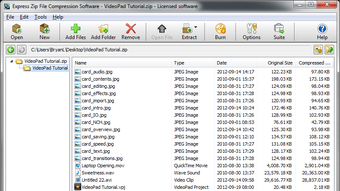
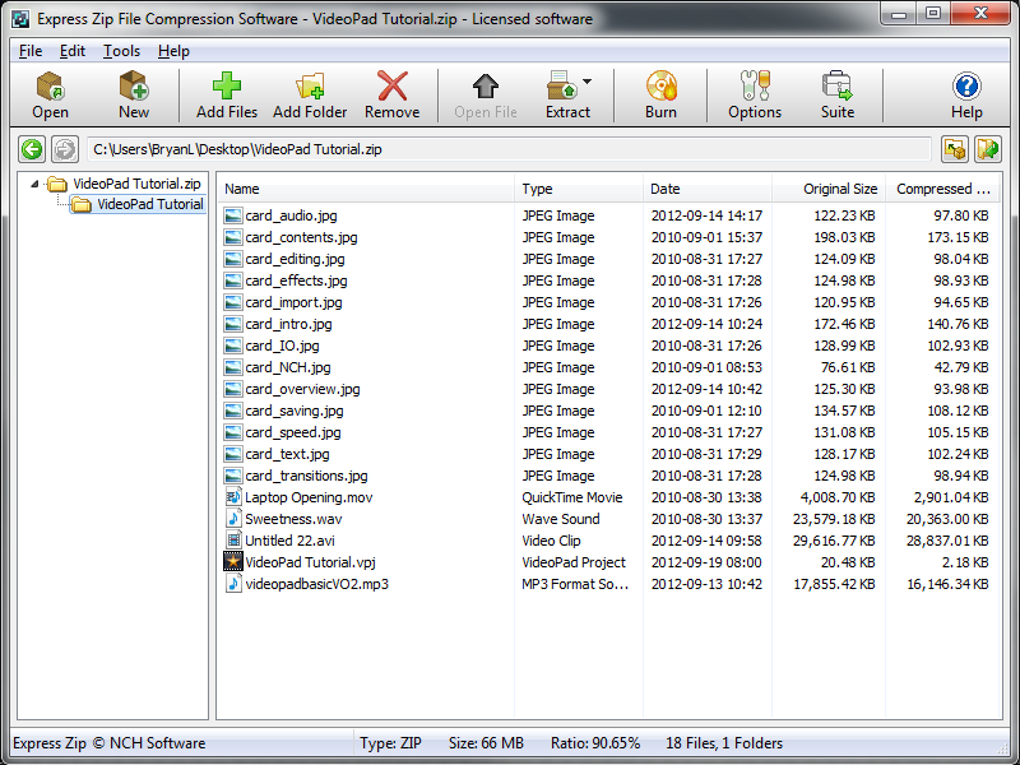
After installation, launch Express Zip from your Start menu (Windows) or Applications folder (Mac). The main interface is clean and intuitive, featuring a central file list, a toolbar with common actions, and a status bar at the bottom. To compress files, simply drag and drop them into the window, or use the “Add Files” button. You can choose the archive format (ZIP is default), set a password for encryption, and select compression level (standard, fast, or maximum). Click “Create” and the process begins instantly.
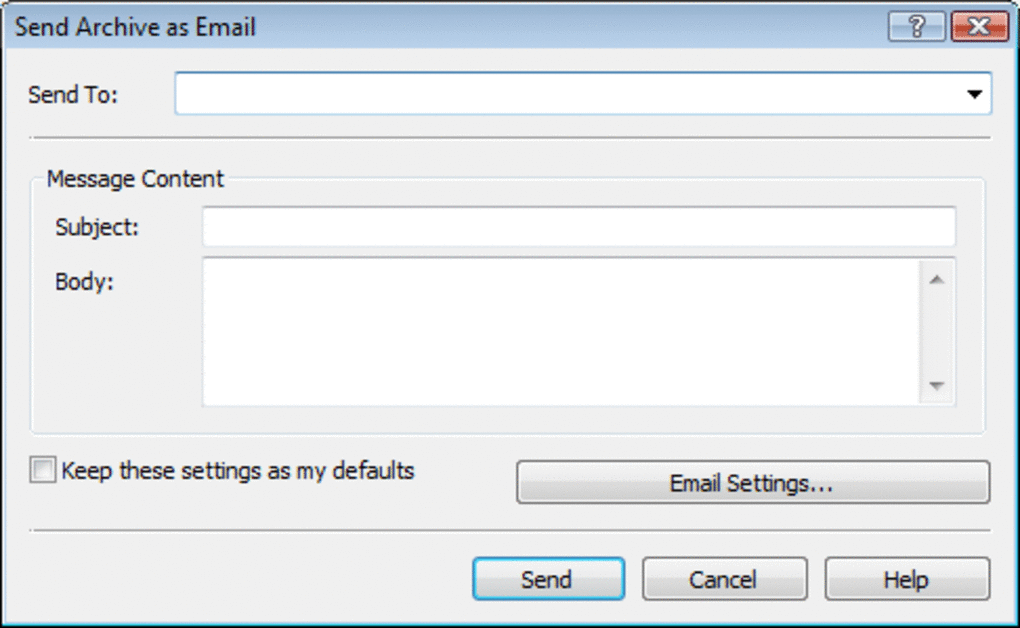
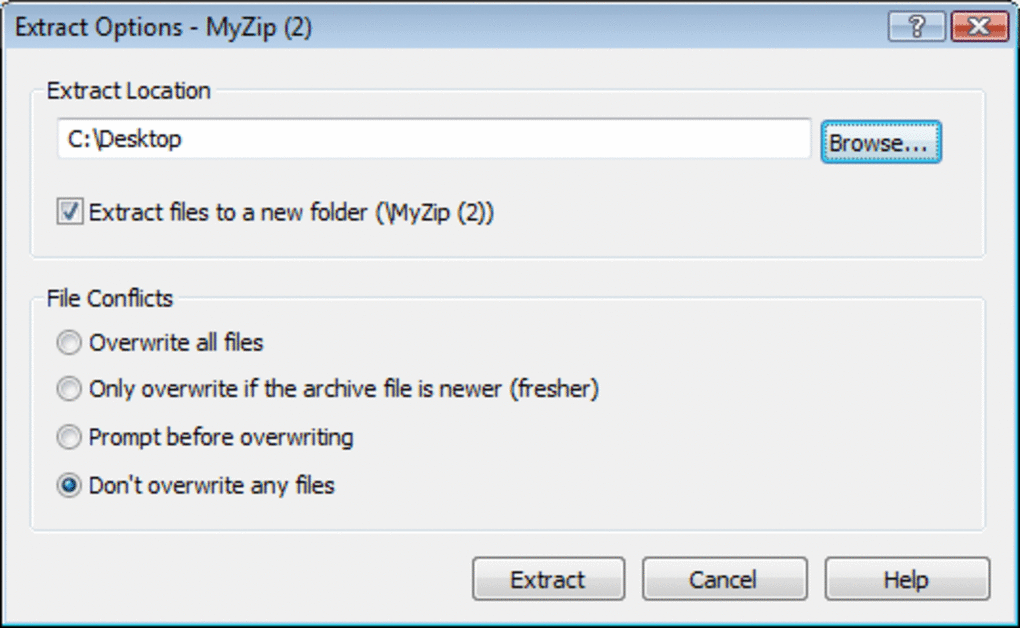
Decompressing files is equally straightforward. Open the ZIP file by dragging it into Express Zip, or use the “Open Archive” option. You’ll see all contained files listed. Select the ones you want to extract, choose a destination folder, and click “Extract.” The software supports both single and multiple file extraction, and you can preview file contents before extracting. For advanced users, the “Advanced” tab offers options like splitting archives into smaller parts (useful for email limits) and setting custom compression settings.
For Mac users, Express Zip integrates seamlessly with Finder, adding a “Compress with Express Zip” option in the right-click menu. On Windows, it adds a context menu entry in File Explorer. This allows you to right-click any file or folder and compress or extract it without opening the app. These integrations make Express Zip a true productivity booster. The software also supports automatic updates—when a new version is available, you’ll receive a notification and can update with one click.
Compatibility and System Requirements
Express Zip is designed to run smoothly on a wide range of systems. It supports Windows 7 and later (including Windows 10 and Windows 11), as well as macOS 10.13 (High Sierra) and later. The software is compatible with both Intel and Apple Silicon (M1/M2) Macs, ensuring optimal performance across modern hardware. It requires minimal system resources—just 50 MB of free disk space and 100 MB of RAM to run efficiently.
For users on older systems, Express Zip still performs well, thanks to its lightweight architecture. It doesn’t require .NET Framework or other runtime dependencies, which reduces the risk of compatibility issues. The application is available as a portable version, meaning you can run it from a USB drive without installation—perfect for temporary use on shared or restricted computers.
Express Zip also supports various file systems, including NTFS, exFAT, and APFS, making it ideal for external drives, network storage, and cloud sync folders. Whether you’re compressing files for email, burning to disc, or sharing via USB, Express Zip ensures compatibility across devices and platforms. Its cross-platform nature means you can compress files on a Windows PC and extract them on a Mac—or vice versa—without any issues.
Pros and Cons of Express Zip
Pros
- Lightweight and fast performance with low system usage
- Free version includes full core functionality
- Supports multiple archive formats (ZIP, RAR, 7Z, TAR, etc.)
- Advanced AES-256 encryption for secure file protection
- Drag-and-drop interface and context menu integration
- File recovery tool for corrupted archives
- Regular automatic updates for security and performance
- Portable version available for USB use
Cons
- Advanced features like cloud sync and batch encryption require the Plus upgrade
- Limited customization in the free version
- No built-in cloud storage (only integration with existing accounts)
- Minimal documentation for advanced users
Frequently Asked Questions (FAQ)
Is Express Zip free to download and use?
Yes, Express Zip offers a fully functional free version that allows you to compress and decompress ZIP files, support multiple formats, and use AES-256 encryption. The free version is ideal for casual users and small-scale projects.
Can I use Express Zip on both Windows and Mac?
Absolutely. Express Zip is available for both Windows (7 and later) and macOS (10.13 and later), including Apple Silicon Macs. The interface and features are consistent across platforms.
Does Express Zip support RAR and 7Z files?
Yes, Express Zip supports not only ZIP but also RAR, 7Z, TAR, GZIP, and other common archive formats for both compression and extraction.
How secure is Express Zip for sensitive files?
Express Zip uses AES-256 encryption, the same standard used by governments and financial institutions, to protect your files. Password-protected archives are highly secure and resistant to brute-force attacks.
Can I recover a corrupted ZIP file with Express Zip?
Yes, Express Zip includes a built-in file recovery tool that attempts to repair and extract data from damaged or corrupted archives, helping prevent data loss.
Final Verdict: Why You Should Download Express Zip Today
Express Zip is more than just a file compression tool—it’s a smart, secure, and efficient solution for managing digital content. Whether you’re a student, professional, or casual user, its fast performance, intuitive design, and robust feature set make it a standout choice. The free version delivers everything you need for everyday tasks, while the Plus upgrade offers advanced tools for power users.
If you’re tired of slow, bloated software that drains your system, Express Zip offers a refreshing alternative. It’s fast, lightweight, and reliable—perfect for compressing large files, securing sensitive data, or recovering corrupted archives. With support for Windows, Mac, and portable use, it fits seamlessly into any workflow.
Don’t wait—download Express Zip now and experience the difference of a truly efficient archive tool. Get started for free, and upgrade only when you need more advanced features. Your files deserve better. Your workflow deserves speed. Download Express Zip today and simplify your digital life.







